
In this tutorial, we’ll show you how to create custom templates for your reports in Not Just Analytics.
Why use templates in reports? Templates allow you to predefine the charts and metrics you want to include in your reports, saving time and maintaining a consistent structure.
You can create templates focused on specific analyses, such as:
- Reels performance
- Profile growth strategy
- Analysis tailored to specific clients
Once you’ve created a template, you can generate reports in just a few clicks, without having to select charts manually every time.
1️⃣ Access the report section
- Log in to Not Just Analytics with your account.
- Go to ’Reports’ in the main menu.
- Click “Create Report” to begin.
2️⃣ Select charts for the template
Now, choose the data and charts you want to include in the template.
Follow the usual report creation process: for now, selecting the profile and date range is just for setting up the initial model. You can use this template with any other profile later on.
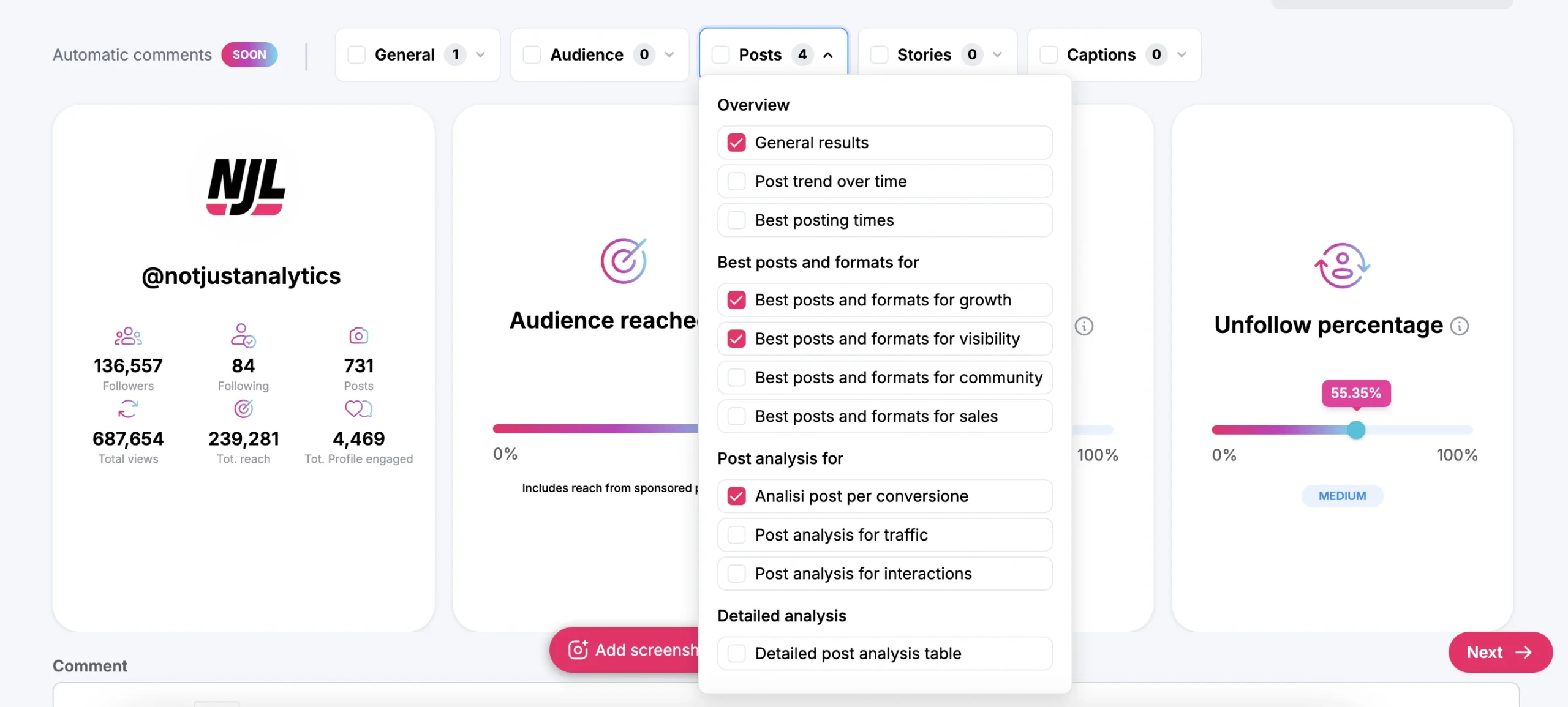
Pick the charts to include in the template:
- select entire sections with bulk selection: (e.g., General, Audience, Posts, Stories, Captions).
- expand each section and select only the specific charts you need with custom selection.
After choosing your charts, click ’Next’.
📌 Tip: if you have multiple clients or want targeted analyses, create different templates for each of your needs!
3️⃣ Save the template
After selecting your charts, you can save this configuration as a template for future use.
- In the final configuration screen for the report, enable ’Save as template’ to store your selection.
- Give your template a name
- Click ’Create Report’ to finalize the process.
📌 What happens now?
- The report will be generated immediately.
- The template will be saved, so you can generate future reports in seconds!
4️⃣ Using the template
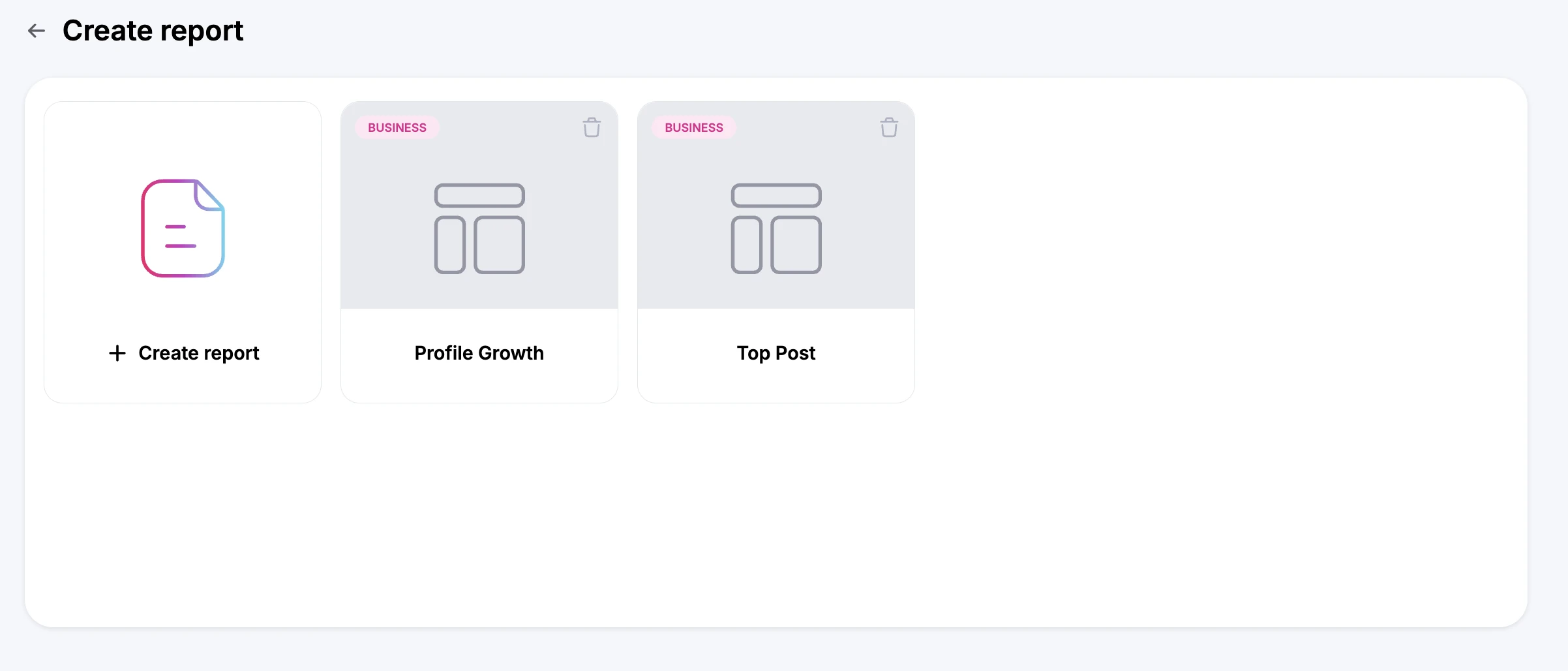
Once you’ve created a template, you can use it to generate new reports quickly and easily:
- Go to the ’Reports’ section and click ’Create Report’.
- Select the profile and time range.
- Choose the desired template from your list of saved templates.
- Click ‘Continue’ to automatically generate the report using the template’s defined charts.
📌 Benefits of using templates:
✔ speed: generate reports in seconds, without selecting the same charts each time.
✔ consistency: keep a uniform format across your reports.
✔ efficiency: perfect for managing multiple clients or specific topical analyses.
Conclusion
Templates help you optimize your workflow and simplify the creation process, ensuring precise and professional reports.
📌 In summary, you can:
✅ create custom templates with the most relevant charts.
✅ save those templates for future use.
✅ generate reports quickly without repeating chart selections.
✅ create multiple templates for different analyses or specific clients.
💡 Need help?
If some features aren’t available, they may depend on your subscription. Check out the features included in each plan or contact our support team for more details.
Meta description:
In this tutorial, we’ll show you how to create custom templates for your reports in Not Just Analytics.